.svg)
What Is Pre-Start?
Pre-Start is a Fleetpin add-on that simplifies, digitises and automates pre-start processes. Drivers complete a simple digital checklist before taking an asset out. The driver works through the list, report any defects and confirm a declaration before submitting. The result is saved in Fleetpin, automating the process and providing complete operational oversight. It ensures information is instantly accessible so you know which assets are safe to operate, which need maintenance, and which are non-compliant.
How It Works
Drivers complete a digital pre-start check on their phone, iPad or tablet before operating a vehicle or machine — confirming asset condition, odometer/meter reading (if applicable), and any defects — with results recorded straight into the pre-start dashboard in Fleetpin, where admins can see completion status, defects, and all other information.
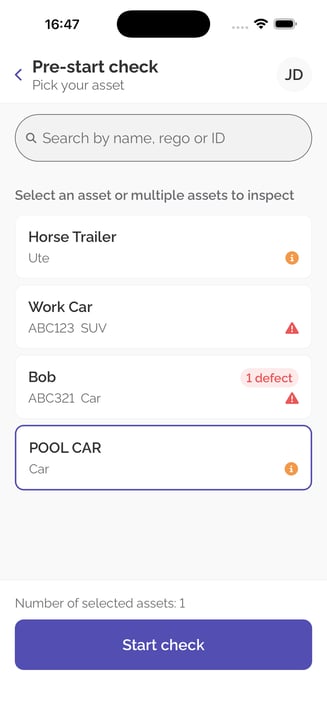
Defects are reported at one of three severities:
Drivers can also report a standalone defect at any time without doing a full pre-start check, useful for flagging something spotted mid-shift. Every defect, at any severity, requires a photo and description.
Before submitting a check, the driver must declare the asset either "safe to operate" or "not safe to operate". By default, any Critical defect makes the asset not safe to operate.
If a driver enters a meter reading that looks well outside what Fleetpin would expect for that asset, this raises its own defect (capped at Needs attention) and is excluded from the check's overall outcome, since it reflects a data or meter issue rather than the vehicle's condition.
Before You Start
Before enabling Pre-Start Checklist, make sure of the following:
- Asset Types are set. Each asset that needs a pre-start check must have a Type assigned under its Profile. See this article for more information.
- You are an Administrator or Fleet Manager. These roles have the Manage pre-start dashboard permission by default, found under Users → Roles. Other roles need this permission turned on before they can manage templates, view the dashboard, or resolve defects.
Step 1: Enable the Add-On
- Go to Admin → Add-ons in the left-hand menu of the Fleetpin web application.
- Select Pre-Start.
- Enable the add-on for the assets you want. You can enable it for all eligible assets or just a selection.
Step 2: Confirm Each Enabled Asset Has a Type and a Template
A pre-start check or defect can only be submitted for an asset once it has a Type, and that Type has a template assigned to it. Enabling the add-on without completing all necessary setup will flag the asset before pre-start can be used.
You will be prompted through any necessary set up after confirming assets in the add-ons menu.
The Needs setup or not used report on the pre-start dashboard will also flag and identify any asset that needs further set up, so check here after enabling the add-on.
Step 3: Set Up Your Checklist Templates
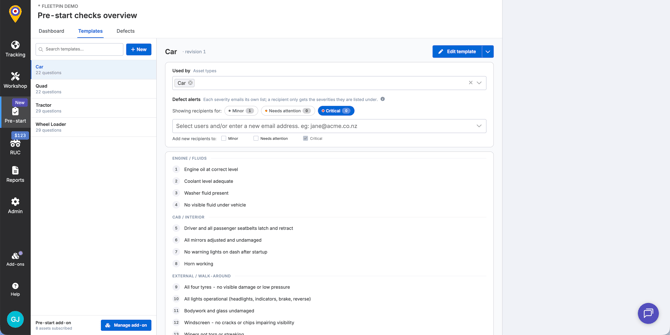
Templates control what a driver actually sees and answers during a check. Fleetpin has nine pre-built templates (Car, SUV, Ute, Dumper, Excavator, Motor Grader, Roller, Wheel Loader, and Bulldozer) that you can duplicate and customise, or you can build your own from scratch.
For the full walkthrough, including how templates are matched to asset Types, see How to Set Up and Manage Pre-Start Checklist Templates.
Step 4: Set Up Defect Alerts
Each template has its own defect alert recipients, configured per severity (Minor, Needs attention, and Critical). When a driver logs a defect at a given severity, everyone on that severity's recipient list is emailed.
- Recipients can be a role, a specific user, or a custom email address.
- If Critical has no recipients configured, alerts fall back to the Fleet Manager role, then to Administrators. If neither role has a member with an email address, no email is sent.
- Minor and Needs attention have no fallback: leaving the recipient list empty means nobody is emailed for that severity.
Defect alert recipients are set from within each template, and take effect immediately. They are not affected by draft or publish. See this article for more information on the pre-start template.
Where You Can See Completed Checks
Once drivers start completing checks, results appear in multiple places, all under the Pre-start dashboard in the left-hand menu:
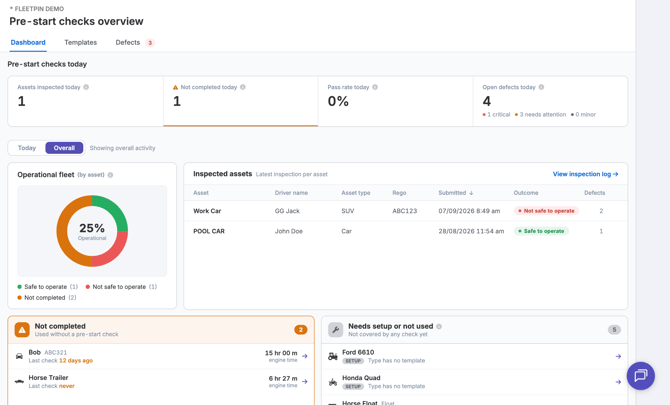
- Dashboard: a live summary/overview of checks, open defects, and any assets that haven't been checked.
- Defects: a working list of every open and resolved defect, with a Mark Resolved action and Defect History button for all history.
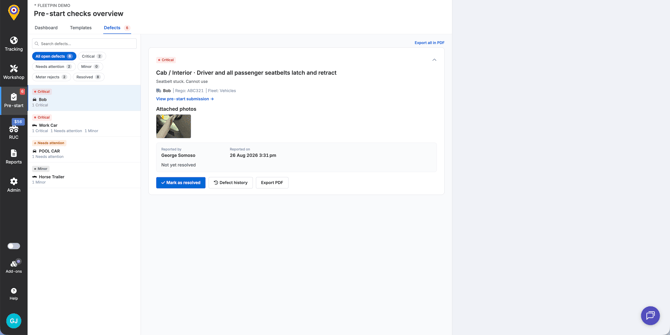
The Pre-Start icon in the left-hand menu carries an open-defect count badge, visible to anyone with the Manage pre-start dashboard permission. This shows a count of the open defects. For more information on the Pre-start dashboard check out this article.
Things to Know
- The Pre-start app is a mobile application that needs to be downloaded separately. For more information on how to use the Pre-start app see this article.
- No lock-out. A Critical outcome does not prevent an asset being used. It's recorded and can trigger an alert, but taking the asset out of service is a manual decision by your team.
- Drivers can submit multiple pre-start checks a day. New submissions will not delete/replace/override previous submissions for that asset.
- Drivers can complete checks for multiple assets in one sitting (for example, a truck and trailer together), completing one check per asset.
- In the Pre-start app any user/driver can see all assets in their organisation. If an asset is greyed out, it means they can still do pre-start checks but they won't have access in the Fleetpin app.
If Something Is Not Working
- If a driver can't see an asset in the Pre-Start app, confirm the asset has the add-on enabled, has a Type assigned, and that the driver has tracking visibility to it.
- If a driver's checklist looks wrong or out of date, check whether the template was recently published. Drivers partway through a check when a template is published finish on the version they started on; the new version applies to the next check.
- If defect alert emails aren't arriving, check the recipient list for that severity under the relevant template, and confirm the recipients have email addresses set on their Fleetpin user record.
Get Help
If something is not working or you are not sure what to do, get in touch with the Fleetpin team. You can use the chat icon in the bottom right of the app, or call us on 0800 110 820.