.svg)
Asset Classification is how Fleetpin knows what kind of asset each of your vehicles and machines are. There are three levels: Category, Class, and Type.
Think of it like a filing cabinet:
- Category is the drawer - the top-level grouping, for example Vehicle, Machine, or Attachment.
- Class is the folder inside the drawer - a sub-grouping within a Category, for example Light Vehicles or Heavy Vehicles.
- Type is the label on each item - the specific type of asset, for example Car, Ute, or Excavator.
Each asset gets one Type, and that's it. You never have to assign a Class or Category to an asset directly. The Type already sits under a Class, and the Class under a Category, so the rest takes care of itself.
How to Set and Manage an Asset's Classifications
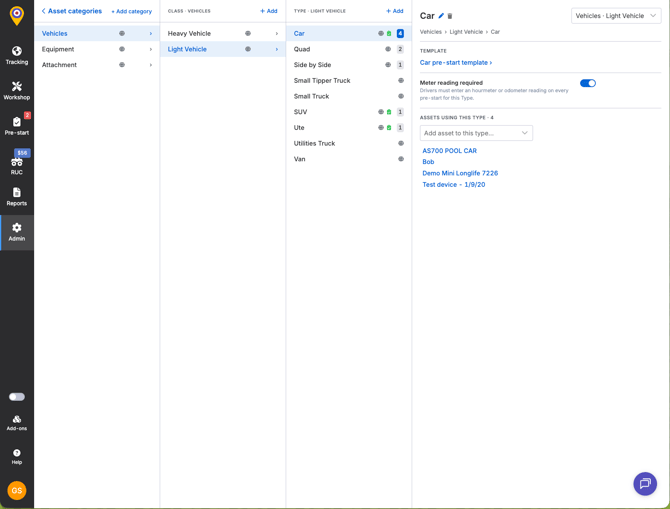
Go to Admin, then Assets, then open Asset categories. You'll see Category, Class, and Type side by side.
- Go to Admin → Assets.
- Select Asset categories.
- Click on a Type field and use the Assets using this type drop down to assign assets to that Type.
By opening a Category you'll see its Classes, and opening a Class inside that Category shows you its Types, so you can work down through the levels and see what sits under what.
From here you can add or remove Categories, Classes, and Types, with an option to assign more assets straight from that screen.
If the Type you need doesn't exist yet, Administrators can create a custom one from the same menu by clicking + Add.
Global Defaults and Custom Classifications
Fleetpin comes with a standard set of Categories, Classes, and Types already loaded, covering common assets like cars, utes, trucks, excavators, rollers, and loaders. Most fleets can use these as they are. These are built-in classifications and cannot be removed.
If you run something other than what the standard list covers, you can create your own at any level by clicking + Add at the top of the section you want to create a custom classification in.
What Unclassified Means
If a Type hasn't been placed under a Class, it shows grouped under Unclassified rather than sitting outside the list. Nothing is broken. It just hasn't been filed yet, and everything still works.
Where It's Used
Right now, Fleetpin's Pre-start add-on uses Types: each checklist template links to one or more Types, so an asset's Type decides which checklist a driver sees.
A couple of things to know if you use Pre-Start: an asset needs a Type for a driver to be able to complete a check, and some Types require a meter reading, so they can only go on assets with an active meter.
Classifying your assets keeps your fleet easy to browse and easy to make sense of. It also sets you up for reporting, so numbers can roll up by Class or Category (say, all Heavy Vehicles at once) instead of reading each Type one at a time. More features will start to use classifications later down the track.
Things to Know
- Every asset can have at most one Type.
- Changing an asset's Type changes which Pre-Start Checklist template applies to it, if the new Type has a different template, or none.
- Deleting a custom Type, Class, or Category is blocked while it's still in use. Reassign any assets using it first.
If Something Is Not Working
- If you can't assign a Type to an asset, check whether that Type requires a meter reading and whether the asset has an active meter configured.
- If you can't delete a custom Type, Class, or Category, confirm nothing is still using it. Fleetpin blocks deletion rather than silently reassigning anything.
Get Help
If something is not working or you are not sure what to do, get in touch with the Fleetpin team. You can use the chat icon in the bottom right of the app, or call us on 0800 110 820.