.svg)
Before You Start
The Pre-Start app is a separate app from the main Fleetpin app. Sign in with your usual Fleetpin username and password. If you haven't got the app yet, you can download it from the App Store (apple) and Google Play store (android).
An asset only appears in your asset list if all of the following are true: the Pre-Start add-on is enabled for that asset, it has an asset Type assigned, and it has a Pre-Start template assigned. If you don't have tracking visibility to an asset, it will still appear in your list (greyed out), and you can still complete inspections on it. If an asset you expect to see is missing, check with your fleet manager or administrator.
Step 1: Open The App & Select Your Asset
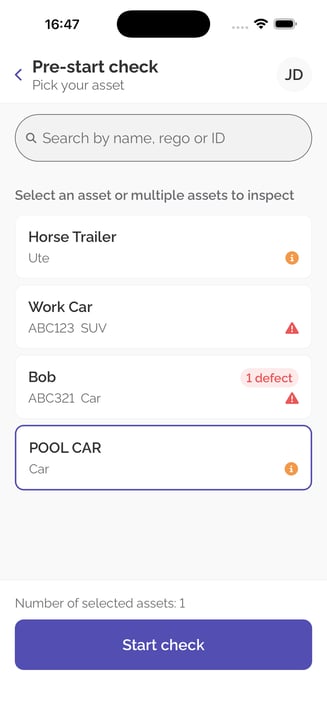
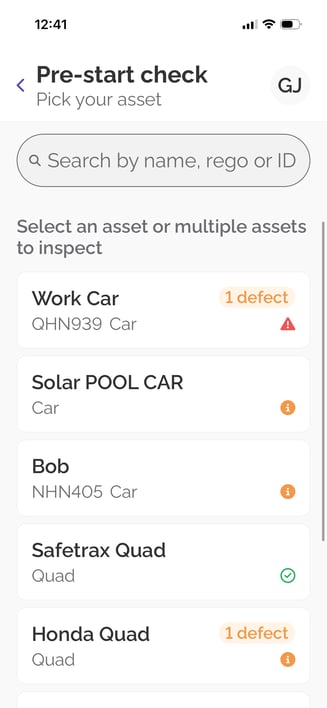
Once you open the Pre-Start app and select Pre-Start check, click the asset from the list you're about to use. You can select up to three assets at a time to run their checks back-to-back in one sitting.
Step 2: Enter Meter Readings
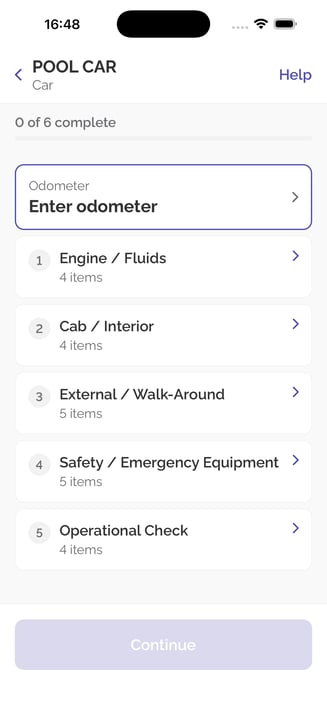
If the asset's Type has "Meter required" turned on, you'll be asked to enter a reading for the active meter (odometer, hubometer, or hour meter) before you can submit.
Step 3: Work Through the Checklist
The checklist is grouped into sections. For each section, you have two options:
- All OK: marks every remaining item in that section as OK.
- Report defect: flags a defect.
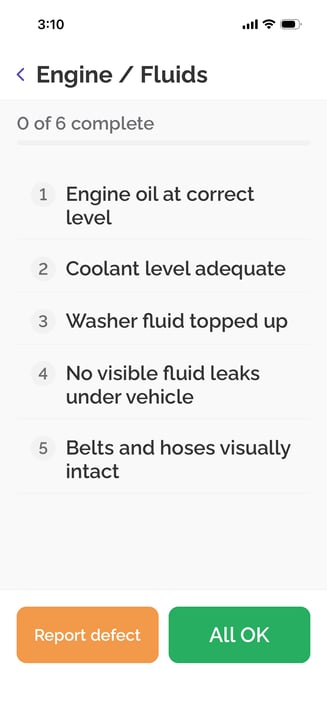
If you select Report defect, you'll need to select which item you want to report from the dropdown list, or choose Other if the problem isn't covered by any listed item.
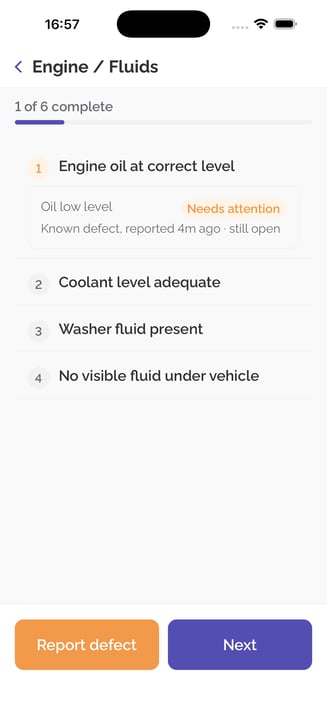
For each defect, you'll need to enter:
- A short description: what's wrong and where.
- Severity: Minor, Needs attention, or Critical.
- A photo: required for every defect, whatever the severity. You can add up to ten images to each reported defect.
Step 4: Confirm and Submit
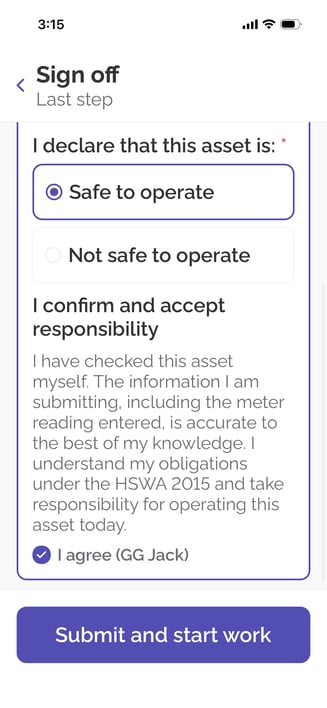
Before submitting, you'll be asked to declare whether the asset is safe or not safe to operate, then confirm the declaration. If you've reported a critical defect, you'll only be able to select "Asset is not safe to operate". Read the declaration carefully, then submit your check.
Once submitted, you're returned to the home screen, which shows your asset list with icons for whether each asset has been checked today or is still outstanding.
You'll remain signed in, so if you're using a shared device, log out before handing it to the next driver.
You can complete a check even when you're outside phone coverage. Once you have service again, you’ll need to go into the Pre-start app and click the retry button to finish submitting. The submission time recorded is when you confirm the declaration, not when the upload completes, meaning everything is timestamped correctly as it happened.
What Happens After You Submit
Your check is saved and recorded in Fleetpin instantaneously. If you report any defects, the relevant Minor, Needs attention, or Critical recipients are emailed automatically, so your fleet manager or the right person knows what you found without you needing to follow up.
Reporting a Defect Without a Full Check
If you spot a problem partway through your shift and don't need to run a full pre-start check, you can report a standalone defect at any time. In the Pre-start app, choose Report defect instead of Pre-Start check. In your asset list, select the asset, then follow the same process as a defect raised during a full check: select default (or other if what you are reporting isn’t on the list), add a description, severity and attach a photo.
Things to Know
- You can complete more than one full check per asset per day if needed. Your asset list shows icons for whether each asset has been checked today or is still outstanding.
- A draft is kept for 24 hours if you're interrupted partway through a check, so you don't have to start again from scratch. If the checklist has been updated since you started, your draft may not be able to be restored, in that case, you'll need to start the check again on the current version.
If Something Is Not Working
- If you can't find an asset in your list, confirm the Pre-Start add-on is enabled, it has an asset Type assigned, and it has a Pre-Start template assigned, then ask your administrator to check. (If you don't have tracking visibility to the asset, it will still show, just greyed out.)
- If the checklist looks different to what you remember, the template may have been updated since your last check, this doesn't affect any checks you've already submitted.
- If your meter reading looks unusually high or low compared to the asset's recent history, it will still be accepted and your check will still submit, but the reading won't update the asset's current meter. Double-checking the number is still a good idea before you submit.
Get Help
If something is not working or you are not sure what to do, get in touch with the Fleetpin team. You can use the chat icon in the bottom right of the app, or call us on 0800 110 820.