.svg)
We recently made an update to meters in Fleetpin due to the behaviour of our new add-on RUC Assist™.
Each asset can have one hubometer and one odometer. This is intended to represent real meters on the asset. For example the hubometer should only exist in Fleetpin if the asset actually has a hubometer.
If any of your assets had more than one of either type, Fleetpin has automatically tidied these up. One has been kept as the primary meter and the rest have been converted to distance meters. The system selected the most appropriate one to keep based on the meter name and how recently it was read.
You should review any assets that had multiple hubometers or odometers to confirm the right one was kept as the primary.
What Meter is the Primary Meter?
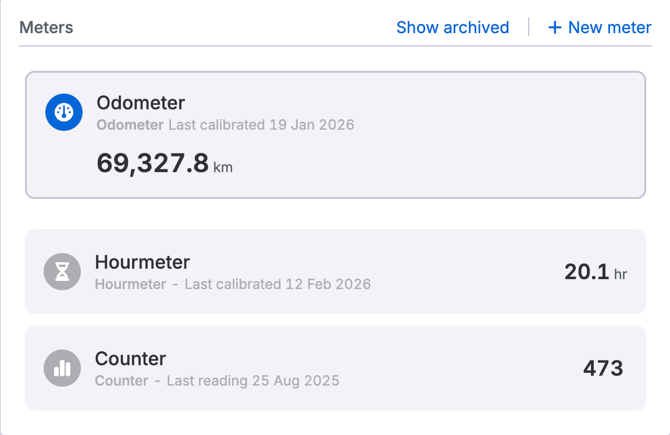
Your primary meter will appear at the top of the meters section. The example below shows an asset with the primary meter as the odometer.
To Check Your Meters
- Go to Admin → Assets and select the asset.
- Open the Meters tab and check that the correct meter appears in the Primary Meters area.
If the Wrong Meter Was Kept as Primary
If the wrong meter was automatically selected, you have two options when changing to the correct meter depending on whether you want to keep the existing meter or remove it.
Remove Current Primary Meter
- Archive the current primary meter.
- Create a new hubometer or odometer with the correct readings.
Change Current Primary Meter
- Select the current primary meter.
- Change the meter type to a distance meter.
- Create a new hubometer or odometer with the correct readings.
Get Help
If you have any further questions or need assistance, get in touch with the Fleetpin team. You can use the chat icon in the bottom right of the app, or call us on 0800 110 820.