.svg)
Before You Start
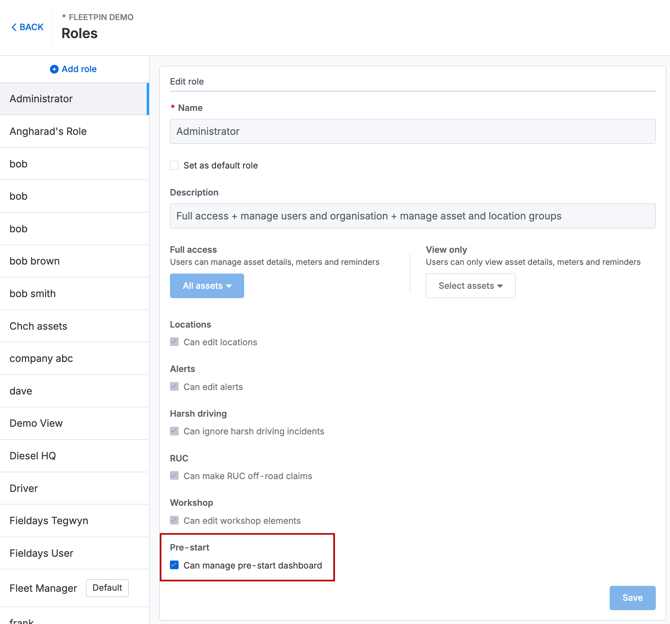
You need the Pre-Start add-on as well as the Manage pre-start dashboard permission selected to view the Dashboard and Defects tabs. This is on by default for the Administrator and Fleet Manager roles.
You can edit this permission setting by navigating to Admin → Users → Roles → Pre-start and tick ‘can manage pre-start dashboard’.
Dashboard Overview
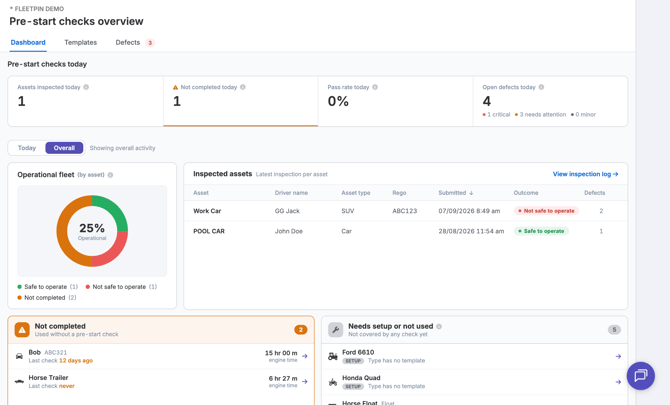
The Pre-Start dashboard can be found in the left hand menu of the tracking view in Fleetpin's web app. It gives you a live summary of pre-start activity across your fleet.
Summary Tiles
- Inspected Today: how many assets have completed a check today.
- Not completed: assets that should have been checked but haven't. See Not Completed Assets below for exactly how this is worked out.
- Pass Rate: the proportion of today's checks that came back Pass.
- Open Defects: defects still awaiting resolution across your fleet.
Today/Overall Toggle
Use the toggle to easily switch between today’s view and the overall view.
Operational Fleet
The operational fleet donut report shows an overview of the status of your fleet and wether an asset is safe to operate or not safe to operate:
- Safe to operate: the driver has declared that asset is safe to operate
- Not safe to operate: the driver has declared the asset is not safe to operate.
- Not completed: The pre-start has not been completed.
The operational vs not operational status is determined by the outcome of submitted pre-start checks declared by the driver.
Not Completed Assets
An asset appears in the Not completed section when the Pre-Start add-on is enabled on the asset, its engine has run for more than 15 minutes today, and it has no check submitted today. Clicking an asset in this list opens its asset details in the overview tab on the tracking view.
An asset stops appearing here for any of these reasons: a check is submitted, the day rolls over, or an Administrator marks it exempt for today from its Tracking record. Marking an asset exempt is an Administrator-only action.
You can mark an asset exempt in the Tracking view → Asset overview by hovering over the little red pre-start icon and clicking Mark exempt.
Needs Setup or Not Used
This section shows you multiple different operational things, and routes you to the right place to fix each one:
Setup
- No asset type: the asset has no Type assigned. Takes you to the asset's Profile with the Type field focused.
- No template: the asset has a Type, but no published template has been assigned to it. Takes you to Pre-Start → Templates.
Not Used
- Not used today: the asset hasn't run today, so there's nothing to flag as "not completed" yet. Takes you to the asset's Tracking record.
Setup gaps (no Type, no template) are listed first, since they need fixing before the asset can generate a check at all. Not-used rows follow.
Inspected assets
A table of completed checks either showing inspections today or latest inspection per asset (depending on which dashboard view is toggled on), with a View all inspections link through to the full inspection log. From there you can search, filter the report and print or export the list as a PDF or CSV.
Reviewing an Individual Inspection
Click an asset to open the inspection from the list to see all details: results for every section, defect photos, meter readings, and the driver's signed declaration.
From the inspection's detail view, you can Print or Export PDF for that individual check. The same options are available at list level from the all inspections view, for exporting a summary of everything in view or exporting individual checks without going into the detail view.
Templates
Navigating to Pre-Start → Templates will open up the templates tab where you can manage and create templates for your Fleet. Check out this article for more information.
Managing Defects
Go to Pre-Start → Defects in the left-hand menu. This tab lists every defect logged across your fleet, open and resolved.
- Severity (Minor, Needs attention, Critical) filters the list to the selected severity.
- Meter rejects is a separate filter for meter readings that were flagged as unusual, these are kept apart from genuine asset defects.
- Resolved shows everything that's been cleared, including resolved meter rejects.
Select a defect to see all details, including submitted photos, and select Mark Resolved once it's been actioned. You are able to see the full history of every defect by clicking the Defect history button.
Resolving a defect does not update that asset's status (operational vs not operational) as shown in the Operational Fleet report (donut report on main dashboard). This is updated the next time a pre-start is completed and the driver has declared if the asset is safe to operate or not.
Note |
A flagged meter reading reject followed by a normal reading, automatically clears the reject. The defect history will show it was resolved automatically, not resolved by a person, since no one actually actioned it. |
Things to Know
- The Pre-Start icon on the left hand menu displays an open-defect badge, showing the count of all open defects which is visible to anyone with the Manage pre-start dashboard permission.
- Switching between Today and Overall recalculates every tile and the donut report, Overall reflects your whole fleet's history, not just today.
- There's no separate completion-rate report. The Dashboard's tiles show your fleet’s completion and pass rate, there's no further reports for this currently.
If Something Is Not Working
- If the Dashboard or Defects tabs aren't visible, confirm your role has the Manage pre-start dashboard permission turned on under Admin → Users → User roles.
- If an asset you exempted shows as needing attention the next day, an exemption only covers the day it was set. You will need to mark it as exempt again if the asset doesn’t require a check.
Get Help
If something is not working or you are not sure what to do, get in touch with the Fleetpin team. You can use the chat icon in the bottom right of the app, or call us on 0800 110 820.