.svg)
What Is a Template?
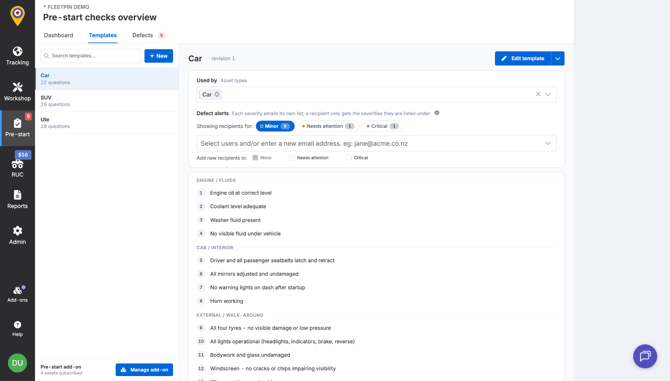
A template is the checklist a driver actually works through during a pre-start check. It's made up of sections, and each section holds one or more questions. A template is matched to your assets by asset Type, not by asset group or individual asset.
Before You Start
You must have the Pre-start add-on enabled and you will need the Manage pre-start dashboard permission ticked to create or edit templates. This is on by default for the Administrator and Fleet Manager roles, and can be granted to other roles under Admin → Users → Roles.
Each asset that should generate a pre-start check needs a Type assigned under its Profile before a template can apply to it.
For more information on how asset Types work, see this article.
Pre-Built Templates
Fleetpin has nine pre-built templates ready to use as-is or duplicate and customise:
- Car
- SUV
- Ute
- Dumper
- Excavator
- Motor Grader
- Roller
- Wheel Loader
- Bulldozer
How to Create a Template
- Go to Pre-start → Templates in the left-hand menu.
- Select + New.
- Choose to start from a pre-built template, or start from scratch.
Using a pre-built template creates an editable copy under your organisation's own templates, rather than editing the template directly. The copy is not linked to an asset Type yet, you'll need to assign one before it can be used. If the source template had defect alert recipients configured, the copy carries those recipients across.
Adding Sections and Questions
You can edit templates by selecting the Edit template button on your chosen template. Once you're editing a template, it's made up of sections, and each section holds one or more free-text questions.
- Use + Add Section to add a new section.
- Use + Add Question within a section to add a question to it.
- Click and drag the handle beside on the left hand side of the question to reorder it within its section.
Every section needs a name and at least one question before you can save. An empty or unnamed section blocks saving with a validation error.
|
Note |
A new template stays hidden from the Pre-Start mobile app until it's published for the first time, even if a draft has been saved. |
Setting Which Assets Use the Template
Each template is matched to your assets via the Used by control, which sets one or more asset Types.
- In the template's view pane, find Used by → Select asset type(s).
- Choose one or more Types from the list. Options include Fleetpin's built-in Types and any custom Types your organisation has created.
- If the Type you need doesn't exist yet, Administrators can select + Create custom type from the bottom of the dropdown.
A single template can be used for several Types (for example, one template could cover both Ute and Car), but each Type can only be linked to one template in your organisation at a time. If a Type is already in use by another template, you won't be able to select it, you'll need to remove it from the other template first.
Setting Up Defect Alerts
Each template has its own defect alert recipients, set per severity: Minor, Needs attention, and Critical.
- In the template's view pane, find the Defect alerts section.
- Select the severity you want to configure.
- Add recipients: a role, a specific user, or a custom email address.
To add the same recipient to more than one severity in a single action, use the "Add new recipients to" option below the recipient picker to tick the other severities before adding.
Defect alert changes save immediately and apply to the next defect submitted. They are independent of the draft and publish process below, editing recipients does not require publishing a new template version.
|
Note |
If Critical has no recipients configured, alerts fall back to the Fleet Manager role, then to Administrators, if neither role has a user with an email address, no email is sent. Minor and Needs attention have no fallback: an empty recipient list means nobody is emailed for that severity. |
Editing and Publishing a Template
Changes to a template's sections and questions don't go live immediately. Editing creates a draft, and drivers keep using the previously published version until you publish.
- Select Edit Template to open the editor. This shows a DRAFT badge while you're working.
- Make your changes, then select Save Template to save your progress as a draft. The live template drivers see is unaffected.
- When you're ready, select Publish. You'll see a confirmation message like the one below:
|
Confirmation |
Publish new version of [name]? New checks use the new version. A check in progress on a driver's phone completes against the previous version. The previous version stays queryable so historical submissions stay accurate. |
4. Select Publish to confirm, or Cancel to keep working on the draft.
If you'd rather abandon your changes, select Discard draft from the edit view. You'll be asked to confirm, discarding cannot be undone.
Reopening a template that already has a draft in progress shows a "Draft in progress" chip, and resumes where you left off.
Duplicating and Deleting Templates
Select the template you want to duplicate or delete and click the arrow to the right of the Edit template button.
In the dropdown select the Duplicate action. This creates an independent, editable copy under your own templates, with no asset Type linked yet. If the source template had defect alert recipients, the duplicated copy carries those recipients across.
Deleting a template is permanent and once done, it cannot be restored. Deleting a template frees up any asset Types it was using, so they can be assigned to a different template.
Things to Know
- Templates list only shows the templates your organisation is currently using. The nine pre-built templates don't appear in this list, use + New to find them and create new copies. Once you have created a new template using the pre-built one, it will appear in the list.
- Template names must be unique within your organisation (not case-sensitive). Duplicating a template that would clash automatically adds "(copy)" to the name.
- Historical checks are unaffected by later edits. Publishing a new version never changes the checklist recorded against a past inspection, each submission is tied to the exact template version the driver used at the time.
If Something Is Not Working
- If you can't select a Type in Used by, it's likely already linked to another template in your organisation. Remove it from that template first.
- If you are unable to Save Template, check for an empty or unnamed section, both need to be fixed before saving.
- If a driver reports seeing the wrong checklist, confirm the asset's Type under Admin → Assets → Profile, and confirm a template is actually published for that Type (a saved draft is not enough).
Get Help
If something is not working or you are not sure what to do, get in touch with the Fleetpin team. You can use the chat icon in the bottom right of the app, or call us on 0800 110 820.