
The Temperature Monitoring add-on allows you to track live and historical internal temperature readings for any temperature sensitive or temperature controlled asset. This add-on helps you maintain cold chain visibility, quality assurance and identifying long-term trends in asset performance.
Temperature Monitoring can be activated by an Admin user in the Add-ons section of the Fleetpin web app. You can enable it for all or just some of your assets, depending on your setup and requirements.
How It Works
When Temperature Monitoring is enabled for an asset, a connected temperature probe continuously records internal temperature readings and sends them through to Fleetpin. These readings are displayed live and stored securely so you can review historical temperature data at any time.
Temperature Monitoring supports up to two probes per device, which is ideal for assets with both chilled and frozen compartments.
Each probe can have its own custom minimum and maximum safe ranges. These thresholds help you identify in the reports when temperatures move outside your acceptable range.
Temperature Monitoring Data & Reports Summary
Temperature data appears in two main areas:
- Tracking View
- Shows live temperature readings while the asset is in use.

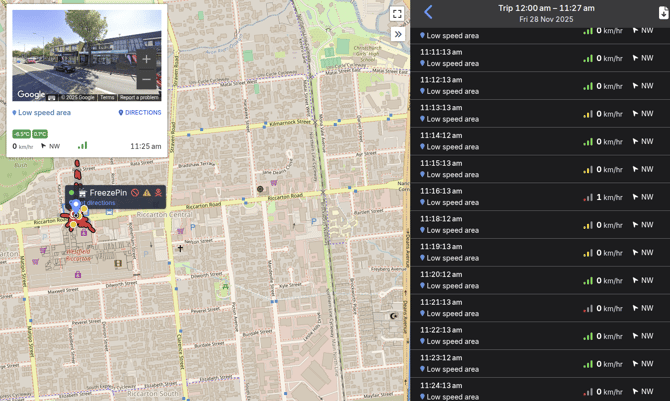
- Shows live temperature readings while the asset is in use.
- Reports
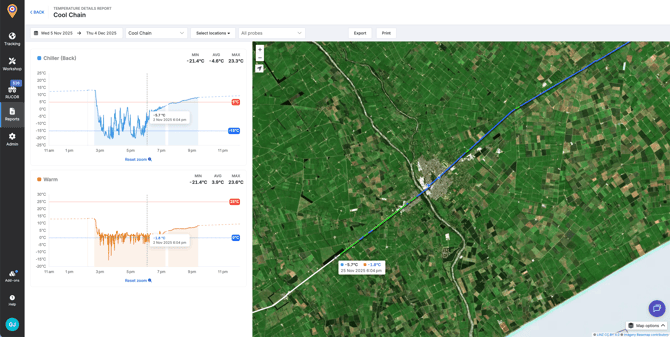
- Includes summarised & detailed reports, full historical logs, temperature graphs and exportable data.
- To view the Temperature Report, on the left hand side of the Fleetpin desktop application, nagivate to Reports → Temperature.

-
- You will see a summarised report of all the assets with the Temperature Monitoring Add-on. You can filter the report at the top by selecting a date range, assets, geofenced locations or configured probe types. This summary can also be exported by selecting the Export button at the top right, or printed with the Print button.
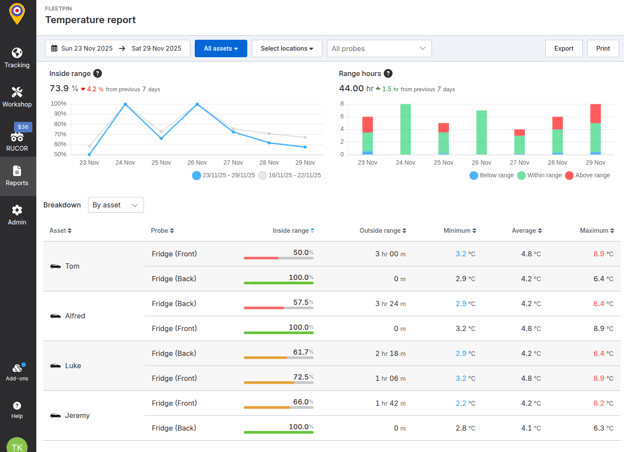
- Click on an individual asset in the summary report to give you a detailed report on the history and thresholds you set for the maximum and minimum temperature.
- You will see a summarised report of all the assets with the Temperature Monitoring Add-on. You can filter the report at the top by selecting a date range, assets, geofenced locations or configured probe types. This summary can also be exported by selecting the Export button at the top right, or printed with the Print button.
Requirements
In order to use the Temperature Monitoring add-on, your device must support the one-wire protocol. The following devices meet this requirement:
- Cross Country 4G
- Rugged 4G
Note: Each device supports a maximum of two temperature probes.
Getting Started
Temperature Monitoring is an additional add-on feature that can be activated by an Admin user in the Add-ons section of the Fleetpin web application. You can enable it for all or just some of your assets, depending on your setup and requirements.
Before Enabling Temperature Monitoring:
- Ensure the asset’s device is one of the listed devices mentioned above.
- Ensure a Fleetpin temperature probe has been installed in your asset.
To Activate Temperature Monitoring:
- You must be an admin user.
- Go to the menu on the left hand side of the Fleetpin web application and navigate to the Add-ons menu and select Temperature Monitoring.
- Enable the add-on for the assets you want to monitor the temperature of.
Create Probe Types:
Before assigning probes to your assets, you’ll need to create the probe types (e.g., Freezer, Fridge).
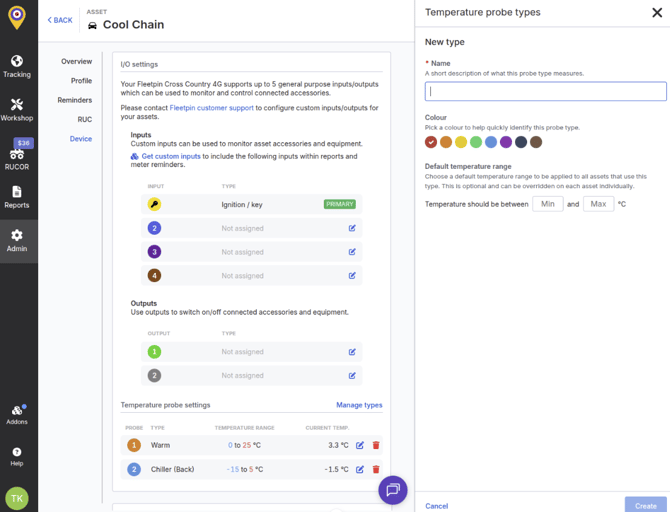
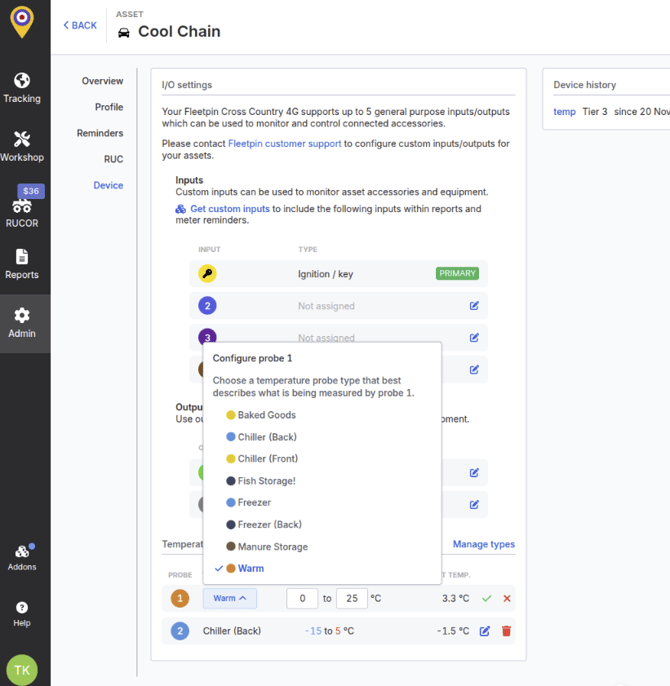
- Navigate to Admin → Assets, select an asset, then go to the Device tab. In Temperature probe settings, click Manage types.
- Click Add type.
- Enter:
- Name (e.g., Freezer)
- Colour (for visual distinction in the asset)
- Optional Minimum and Maximum Values - set default safe temperature ranges for the probe
- Click Create.
- Repeat as needed (Chiller, Ambient, etc.).
Assign Probes & Configure Thresholds
- Navigate to Admin → Assets, select the desired asset, then open the Device tab. In Temperature probe settings, click the edit (clipboard) icon to modify the probe settings.
- Assign each probe to the correct probe type.
- Specify the minimum and maximum temperature thresholds. These values will replace any previously set ranges for the probe type.
- Click the green check icon to save.
- Repeat for all probes and assets as required. This is a one time set up. If you wish to change the maximum and minimum thresholds set for each probe, this can be done here anytime.
If you have any questions, or need a hand please get in touch via the Chat button or email - support@fleetpin.co.nz.