.svg)
This article is intended for IT administrators who own your organisation's Azure environment. It assumes you are comfortable registering applications in the Azure portal.
For Microsoft users, organisations can connect their own Azure AD tenant. This is called tenant-locked SSO. When enabled, your users sign into Fleetpin through your company's own Microsoft tenant and you control access from the Azure side.
Before You Start
Fleetpin matches an SSO sign-in to a Fleetpin account by email address. Three things must be true for sign-in to succeed:
- The user is already invited to your Fleetpin organisation. SSO does not auto-create new Fleetpin users.
- The email or UPN (user principal name) on their Microsoft Azure identity matches the email on their Fleetpin user record.
- For tenant-locked SSO, the user belongs to the Azure tenant your organisation has connected.
Before Setting Up SSO, Confirm The Following:
- Admin role in Fleetpin — the SSO setup tab is only visible to organisation admins.
- SSO feature enabled — if you do not see an SSO tab under Settings, contact Fleetpin support to have it enabled for your organisation (note this is offered as a Fleetpin add-on).
- Azure admin access — you need an admin in your Azure tenant who can register an application and create a client secret.
- Fleetpin users details — Fleetpin user details must match the details of the user in Azure. Existing users do not need to be re-invited to Fleetpin, but their Fleetpin email must match their Azure email exactly.
Step 1: Register Fleetpin in Your Azure Tenant
The first step in your setup is to register Fleetpin as an application. These instructions are for the Microsoft Entra admin centre (entra.microsoft.com); you can also complete these in the Azure portal (portal.azure.com) under Microsoft Entra ID, where the App registrations screens are the same:
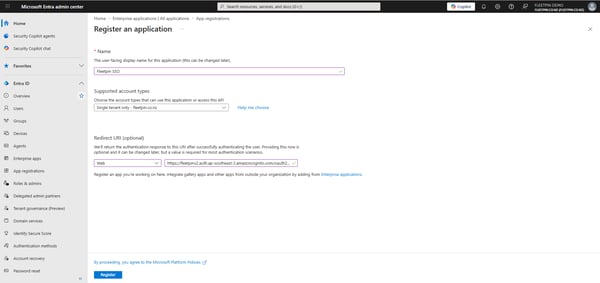
- In Microsoft Entra (Azure AD), open App registrations and choose New registration.
- Give the app a recognisable name, for example Fleetpin.
- Choose Single tenant as the supported account type, unless you have a specific reason to allow multi-tenant.
- Under Redirect URI, choose type Web and enter the following exactly: https://fleetpinv2.auth.ap-southeast-2.amazoncognito.com/oauth2/idpresponse
- Click Register.
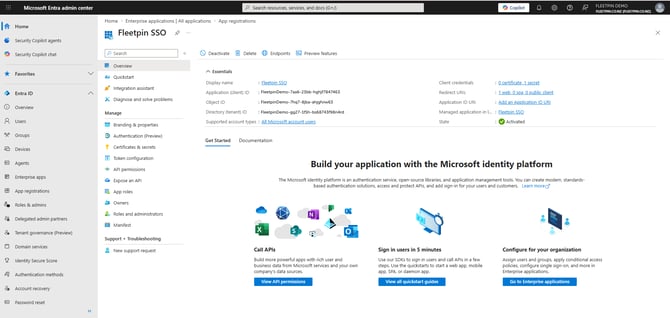
- On the app's Overview page, copy the Application (client) ID and the Directory (tenant) ID. You will need both in Step 2.
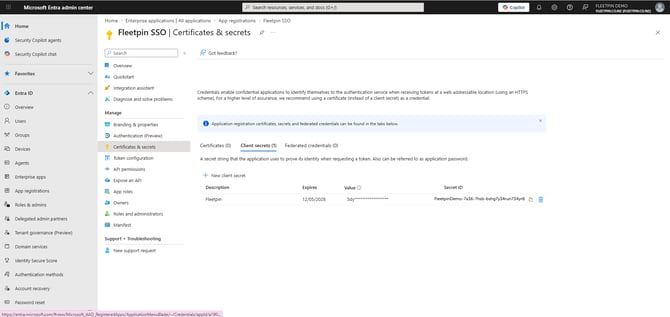
- Open Certificates and secrets, create a new client secret, and copy its Value (not the Secret ID). Save it somewhere safe — you cannot view this value again after leaving the page.
- Open API permissions and ensure these delegated Microsoft Graph permissions are granted: openid, profile, email. Grant admin consent.
Read this article for further information and instructions on registering apps in your AAD.
Step 2: Configure SSO in Fleetpin
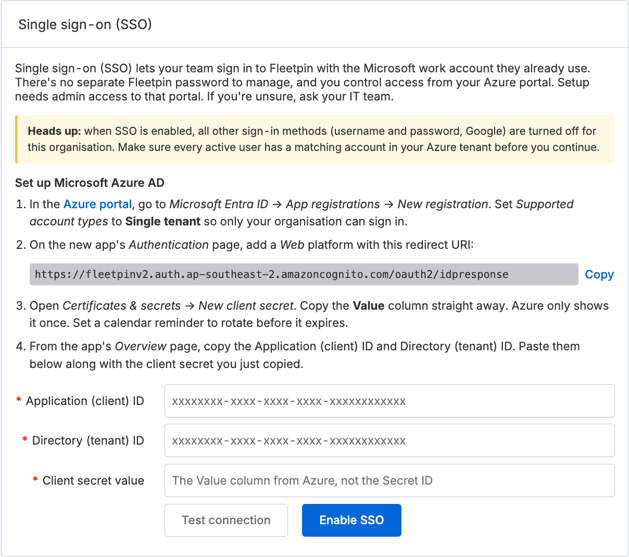
- In Fleetpin, go to Admin → Organisation & API settings → SSO.
- Paste in the three values you copied from Azure: Application (client) ID, Directory (tenant) ID, and the client secret Value.
- Click Test connection. Fleetpin validates the credentials against your Azure tenant. Fix any errors before continuing. The most common cause of a failed test is pasting the Secret ID instead of the Secret Value.
- Click Enable SSO. Fleetpin creates a per-organisation identity provider in its Cognito user pool, wired to your tenant.
Step 3: Test Sign-In
Before rolling out SSO to your team, test it yourself:
- Sign out of Fleetpin.
- On the login page, enter your work email, then click Continue with Microsoft.
- Sign in with your Azure account.
If successful, you will be signed in and returned to Fleetpin.
If sign-in fails, check that your Azure email matches your Fleetpin email exactly and that your user is in the Fleetpin organisation. Update either side as needed before pushing SSO out to the rest of your team.
What Changes for Your Users
Once tenant-locked SSO is enabled for your organisation:
- Users sign in by clicking Continue with Microsoft on the Fleetpin login page. They no longer need a Fleetpin password.
- Multi-Factor Authentication (MFA) is enforced by your Azure tenant policies.
- The Fleetpin password and 2FA management screens are hidden for users in your organisation.
- Users who have not been invited to your Fleetpin organisation cannot sign in, even if they have an account in your Azure tenant. SSO matches existing Fleetpin users; it does not create them.
For further information on users signing in, accepting a Fleetpin invite, changing passwords or 2FA, please see this article.
Known Limitations
- Azure Active Directory only — tenant-locked SSO supports Azure AD only. SAML is not currently supported.
- No auto-provisioning — SSO does not create Fleetpin users. New users must be invited with the email address they will use in Azure.
- One SSO connection per organisation — each Fleetpin organisation can connect one Azure AD tenant.
- Shared SSO MFA — when a user signs in with shared Microsoft or Google (not a tenant-locked organisation), Fleetpin's own MFA is not applied. MFA is whatever Microsoft or Google enforces on the account.
For information on ongoing SSO management in Fleetpin, please see this article.
Get Help
If something is not working or you are not sure what to do, get in touch with the Fleetpin team. You can use the chat icon in the bottom right of the app, or call us on 0800 110 820.