.svg)
Where To Find Your Score
Your driver score sits on the My Driving screen in the Fleetpin app.
Tap the menu (☰) and select My Driving.
My Driving sits between Driver ID and My Activity.
My Driving only appears if your organisation has turned on both Harsh Driving and Driver ID add-ons for the vehicles you drive, and you are set up as a driver. If either one is off, the screen tells you which one and asks you to talk to your fleet manager.
What Your Driver Score IsYour driver score is a score out of 100 for the period you have selected at the top of the screen. The higher the score, the better. Drive the selected time period with no incidents and the score stays at 100.
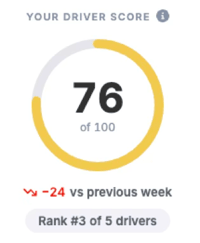
|
Score |
Ring And Bars |
|
80 to 100 |
Green |
|
60 to 79 |
Amber |
|
Below 60 |
Red |
How Your Driver Score is Calculated & How You Lose Points?
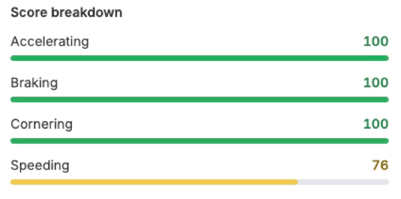
Five things are scored, and each gets a row under Score Breakdown:
- Accelerating
- Braking
- Cornering
- Speeding
- Roll Warnings, on vehicles fitted with Safetrax. Safetrax is extra safety gear your fleet manager can tell you about. This row also covers actual rollovers.
Each row shows its own score out of 100, plus the number of incidents behind it when there are any. Every row is worked out on its own, so a low row does not always mean a low overall score.
Not Every Incident Costs The Same
Each incident is graded on how serious it was, and the serious ones cost far more, so one big speeding event can outweigh several harsh braking or cornering events.
On the standard settings:
- Harsh accelerating, braking, and cornering are always the lowest grade.
- Speeding is graded on how far over the limit you were, and on faster roads how far you carried it. At 5 km/h over the limit or less, it does not count.
- A roll warning is graded on how long it lasted. A rollover is the highest severity.
Your fleet manager can adjust these settings, so scoring and the severity may differ based on changes to the formula.
Each bar is worked out on its own, so a low bar does not always mean a low score. You might see one bar sitting well below the others while your overall score is still high.
How To Lift Your Score
You cannot undo an incident once it has been recorded, but your score isn’t set in store and can be improved. These things can help lift it:
- Ease off the throttle and brake earlier. Smooth starts and stops are what the accelerating and braking rows look at.
- Slow down before the corner, not in it.
- Watch your speed on the open road. Speeding is graded on how far over the limit you go, so a small speeding event costs far less than a big one.
- Keep clocking up clean kilometres. Distance without incidents pulls your score back up.
- Each period starts fresh. A rough week does not follow you into the next one meaning you start fresh.
What counts as harsh accelerating, braking, or cornering is set by your fleet manager, not by Fleetpin. Your fleet manager can tell you the settings for your fleet, and can see the individual incidents behind your score.
Time Periods
The screen opens on This Month by default. The periods are defined by the following time frames:
|
Period |
Covers |
The Arrow Compares It Against |
|
This Week |
Monday of this week to today |
The same number of days immediately before it |
|
Last Week |
Monday to Sunday of last week |
The week before it |
|
This Month |
The 1st of this month to today |
The same number of days immediately before it |
|
Last Month |
The whole of last month |
The month before it |
What Is the Up or Down Arrow Below My Score?
It compares the period you have picked with the period straight before it. Pick ‘Last week’ and it compares against the week before that. Pick ‘This month’ and it compares against last month.
If there is no arrow, there is nothing to compare against yet, or your score has not moved.
Your Rank Against Other Drivers
Your rank is your place among the drivers at your company who drove in that period. Drivers who did not drive are not counted.
Drivers on the same score share a place. If six drivers are all on 100, they are all #1 and the next driver down is #7. Ties are common, because everyone who drove without incidents is on 100.
Your place can change even when your score has not, because it depends on how everyone else drove. The app never shows you another driver's score or name.
Which Vehicles Count
Your score only counts vehicles that have both Harsh Driving and Driver ID turned on. If you drove other vehicles in the period, a line under your score tells you some of your driving was on vehicles that cannot be scored, and those trips are left out.
If a trip looks like it is missing from your score, this is usually why. Your fleet manager can tell you which vehicles are set up.
Things To Know
- Why did my score change when I picked another period? Each period is worked out on its own. It is not one running total that carries over.
- Why has today's driving not shown up? Your score is calculated after your trips finish processing, so it will not move the moment you park up. Give it a few minutes and check again.
- Does one bad moment ruin my score? Usually not. Drifting a little over the limit is not treated the same as being a long way over, and clean kilometres bring the score back up.
- Can I see the individual incidents? Not in the app. Your fleet manager can see each one and talk them through with you.
- Who else can see my score? Your fleet manager can see driver scores, and the incidents behind them, in the Harsh Driving report.
- What if I think my score is wrong? Talk to your fleet manager. They can look at the incidents behind it and check what was recorded.
- Why does it say no trips? You had no trips in that period that could be scored. Try another period.
Get Help
If something is not working or you are not sure what to do, get in touch with the Fleetpin team. You can use the chat icon in the bottom right of the app, or call us on 0800 110 820.