.svg)
Adding Users
Adding a user to Fleetpin is unchanged: invite them under Admin → Users using their Microsoft work email (their UPN or the address they sign in to Microsoft with). It must match their UPN or email, as that is what Fleetpin matches the sign-in against.
If your Azure app requires user assignment, also add the user to the app under Enterprise applications → Fleetpin → Users and groups.
Removing Users
To remove access, remove the user from both Fleetpin and the Azure app's assigned users. Removing the users from Azure blocks SSO sign-in immediately, and removing them from Fleetpin revokes access regardless of the sign-in method used moving forward.
Rotating the Client Secret
When you need to rotate your Azure client secret:
- Create a new secret in Azure and copy its value.
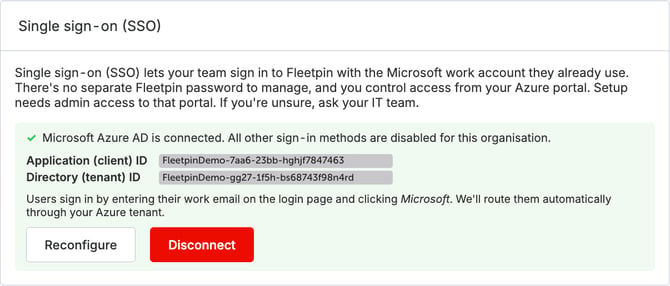
- In Fleetpin's SSO settings, click Reconfigure and paste the new secret into the client secret field and click Update.
- Optionally delete the old secret in Azure.
You do not need to take Fleetpin offline to rotate a secret. Existing user sessions are not disrupted.
Disconnecting SSO
In Admin → Organisation & API settings → SSO, click Disconnect to remove the connection. This re-enables email-and-password sign-in for your organisation.
Sign-in Method Indicator
In the user list which can be found in Fleetpin by going to Admin → Users, each person's most recent sign-in method (Microsoft, Google, or password) is shown, so you can see who is using/ has moved to SSO.