.svg)
Sign-In Options
There are three ways users can sign into Fleetpin:
- Email and password — sign in with your Fleetpin email address and password.
- Continue with Microsoft — sign in using a Microsoft account linked to your Fleetpin user.
- Continue with Google — sign in using a Google account linked to your Fleetpin user.
To use Microsoft or Google single sign-in, your Fleetpin account email must match the email address on your Microsoft or Google account.
If your organisation uses tenant-locked single sign-on (SSO), the sign-in process is different. See How to Sign In With Tenant-Locked SSO for instructions.
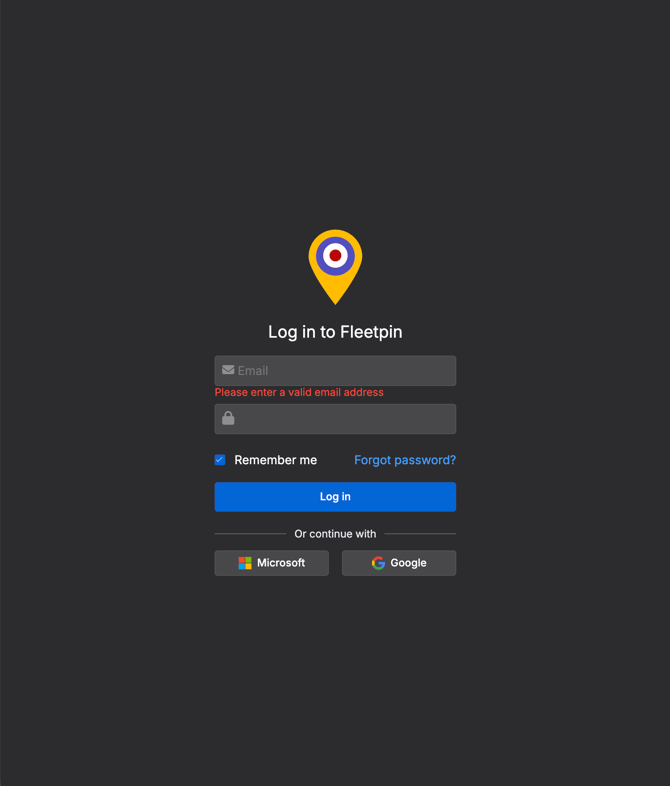
Sign In With Email and Password
- Go to app.fleetpin.com
- Enter your email address
- Enter your password
- Click Log in.
- If two-factor authentication is enabled on your account, you will be required to enter your verification code when prompted on the next page.
Sign In With Microsoft
- Go to app.fleetpin.com
- Click the continue with Microsoft button
- Sign in with your Microsoft account. Complete any multi-factor authentication your Microsoft account requires, then you will be returned to Fleetpin signed in.
Sign In With Google
- Go to app.fleetpin.com
- Click the continue with Google button
- Sign in with your Google account. Complete any multi-factor authentication your Google account requires, then you will be returned to Fleetpin signed in.
Multi-Factor Authentication
There are two MFA paths available depending on how a user signs in:
- Fleetpin email and password — Fleetpin's own MFA applies, configured under Settings → Profile → Two-factor authentication.
- Microsoft or Google SSO —When signing-in using SSO, Fleetpin enforces the MFA setup on the Microsoft or Google account. Fleetpin does not add its own MFA on top of the existing one.
If your organisation enforces tenant-locked SSO, MFA is managed entirely by your Azure tenant policies. The two-factor authentication card in Fleetpin's profile settings is hidden for users in your organisation. For more information on Fleetpin’s tenant-locked SSO please see this article.
Things to Know
- Microsoft and Google sign-in: your Fleetpin account email must be an exact match of the email on the Microsoft or Google account you choose. If you have more than one account, choose the one that matches.
- Two-factor authentication: when signing in with email and password, Fleetpin applies its own two-factor authentication if you have it enabled. When signing in with Microsoft or Google, MFA is handled by your Microsoft or Google account. Fleetpin does not add additional MFA on top.
- Tenant-locked SSO: if your organisation has enabled tenant-locked SSO, password sign-in is not available and you must sign in with Microsoft. See How to Sign In With Tenant-Locked SSO.
If Something Is Not Working
- If you have forgotten your password, click Forgot password? on the sign-in page to reset it.
- If Microsoft or Google sign-in fails, check that the account you are using matches your Fleetpin email address exactly.
- If your organisation uses tenant-locked single sign-on, see How to Sign In With Tenant-Locked SSO.
- If you do not have a Fleetpin account, contact your administrator to be invited.
Get Help
If something is not working or you are not sure what to do, get in touch with the Fleetpin team. You can use the chat icon in the bottom right of the app, or call us on 0800 110 820.